Import from Recipe Screenshot
Turn a saved screenshot into a real recipe.
Import the screenshots you've been saving from social media, group chats, or anywhere else — Rasora reads the recipe straight from the image.
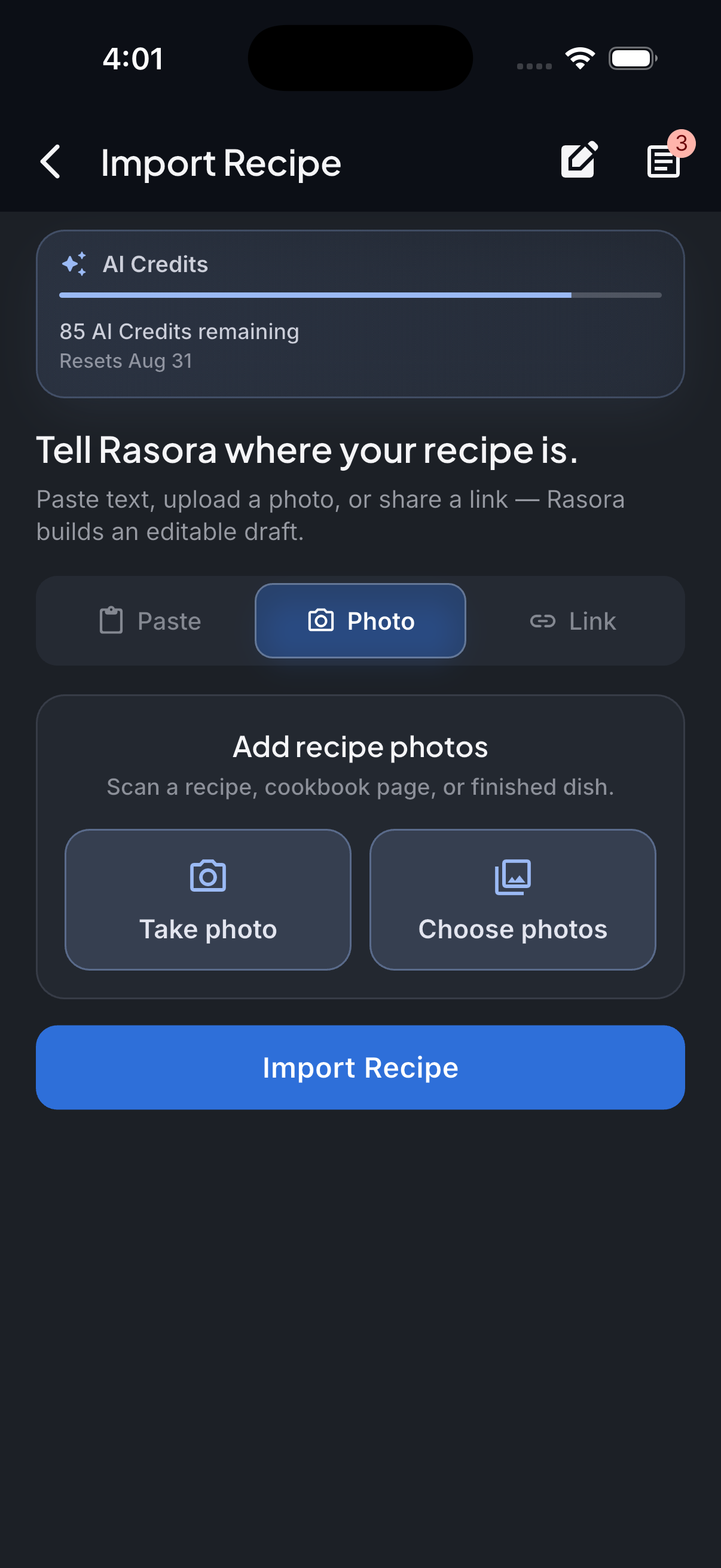
AI Import
Import with AI
Turn links, photos, and notes into structured recipes in seconds.
How it works
The screenshot is read for any visible recipe text — captions, on-screen text, or a photographed recipe card all work the same way.
Open AI Import in Rasora
Go to AI Import and choose the Photo tab.
Select the screenshot
Pick the saved screenshot from your camera roll.
Rasora reads the recipe
Any visible ingredients and steps in the image are extracted into a structured recipe.
Review and save
Check the extracted recipe, fix anything that looks off, and save it to your cookbook.
Try it yourself
Get Rasora and import your first Recipe Screenshot recipe.
Free to start — AI import, a real cookbook, and nutrition you can trust.
Common questions
Does this work for screenshots of text messages or group chats?
Yes — if a recipe is visible as text in the screenshot, Rasora can read it the same way.
What if the screenshot is cropped and missing part of the recipe?
Rasora only extracts what's actually visible in the image — a cropped-out ingredient or step won't be included, rather than guessed at.
Can I import multiple screenshots of the same recipe at once?
Each screenshot is imported individually right now — for a recipe split across several screenshots, the cleanest result usually comes from combining them into one image first.


